Pairing Devices.

Any device. Any browser. Pair it once and your patients can check in, look up a booking, or start a walk-in — no app needed.

~2 minutes
Whole team
What you'll cover
Pairing a device in Light
Configuring what patients see
What to check if it stops working
No app needed
Works in any browser. Tablet, kiosk, or phone.
No limit
Pair as many devices as you need. One kiosk or ten.
Settings · Kiosks
Chapters
0:00Why pair a kiosk
1:00SettingsSetup
1:12Adding a new device
1:20Pairing the device
1:45Configuring Kiosk Actions
2:30Test it!
3:00Troubleshooting Kiosk Pairing
Continue to step-by-step guide
The setup

Step by step

What you're doing in the recording — and why each step matters.

Step 01

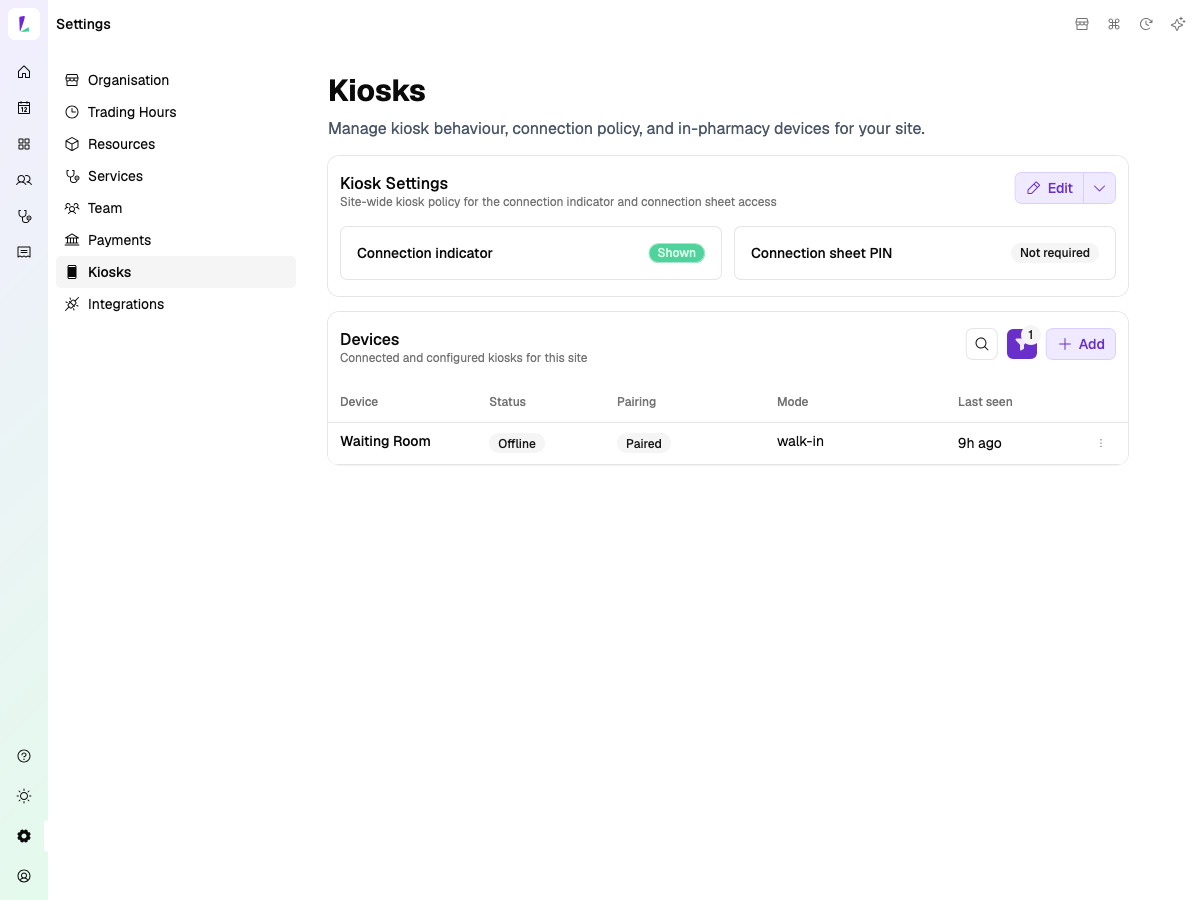
Open the Kiosks page

Head to Settings, then select Kiosks from the left menu. This is where you'll manage all your paired devices.

Click Add Device to get started.
Screenshot
Settings — Kiosks page with device list and Add button
Step 02

Pair the device

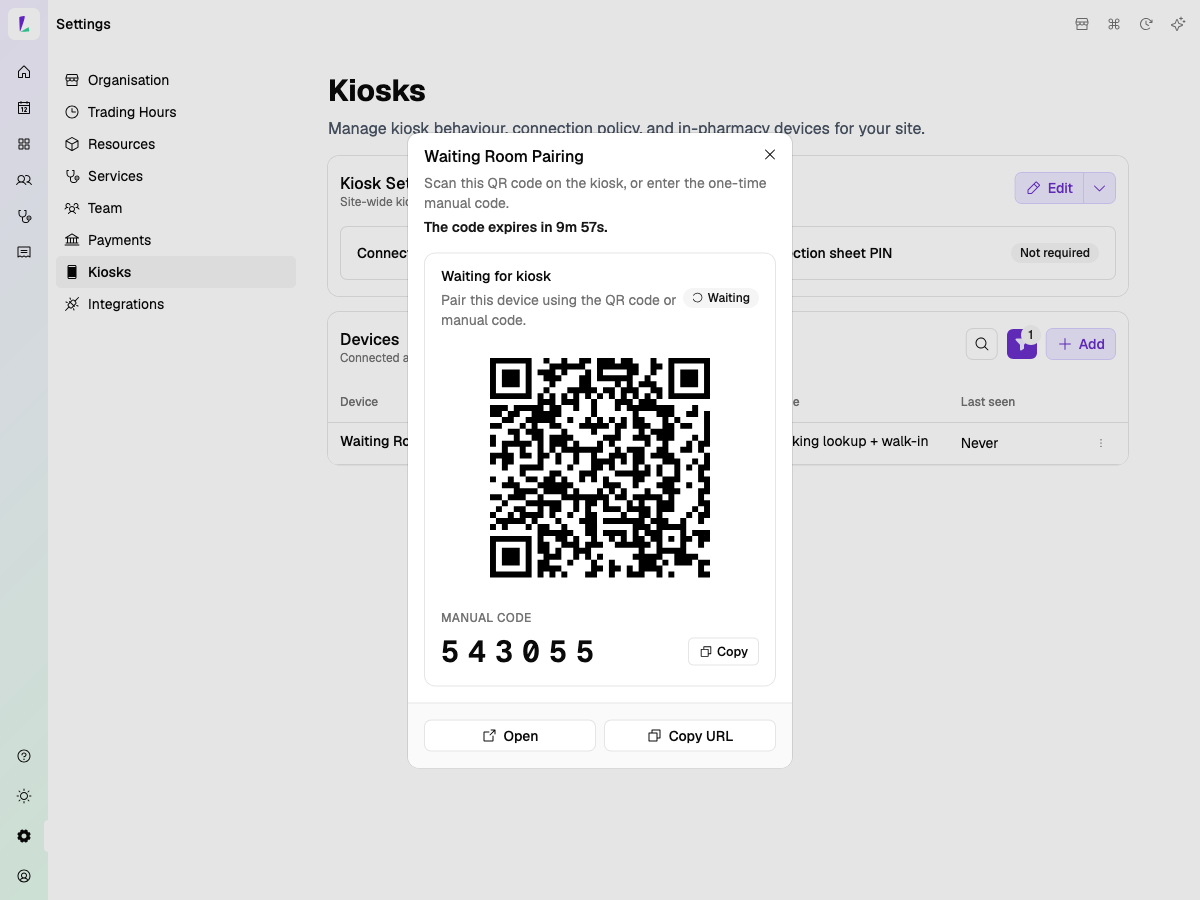
Name your device and hit Add and pair now. Light generates a QR code — open the device's camera and scan it to pair instantly.

Alternatively, you can use the URL and code shown on screen — type the URL into any browser on the tablet and enter the pairing code.
Screenshot
Add Device modal — device name and Add and pair now button
Step 03

Configure what patients see

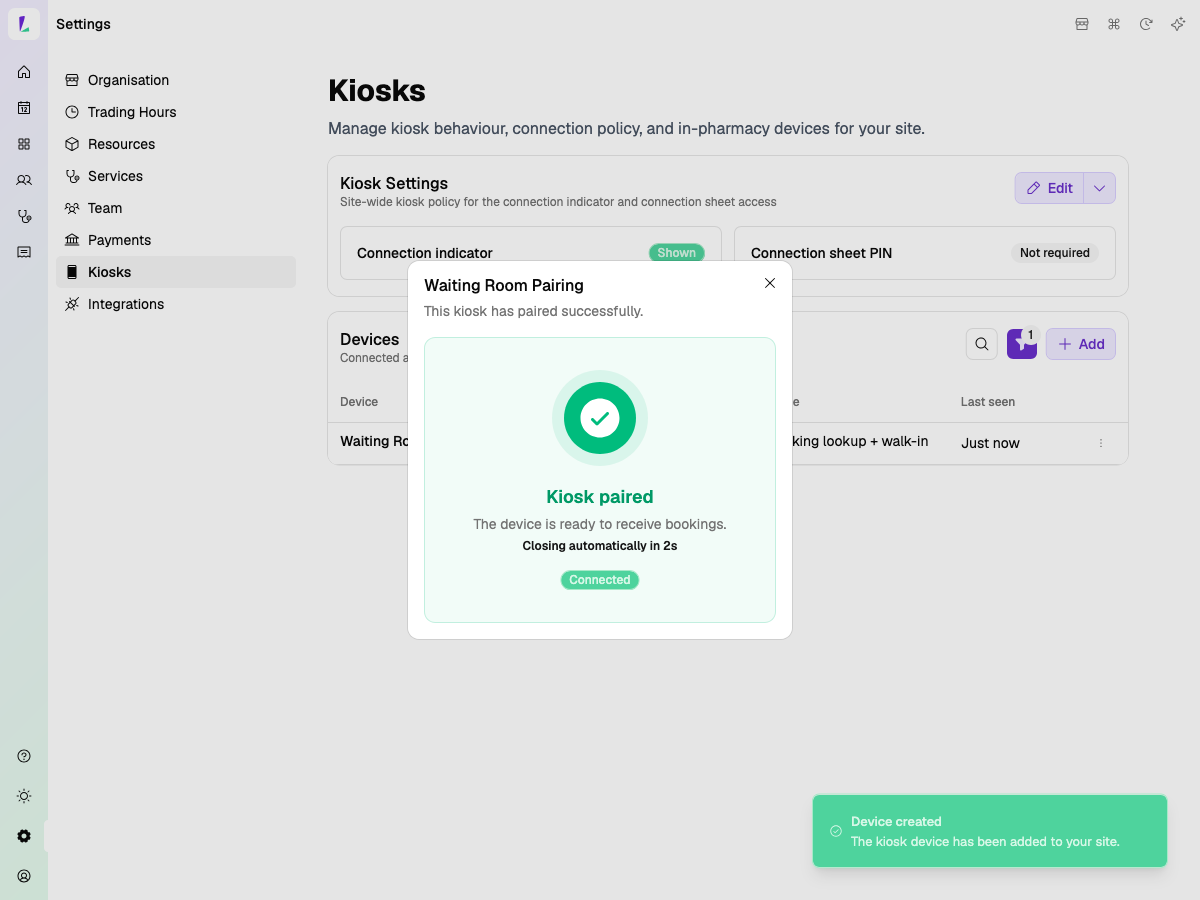
Once paired, configure your Kiosk Actions — these are the options patients see on the tablet screen.

Choose from Check in for a booking, Start a walk-in, or Look up a booking. Toggle each one on or off depending on how your pharmacy runs.
Screenshot
Kiosk paired successfully — Connected status
Step 04

Test it!

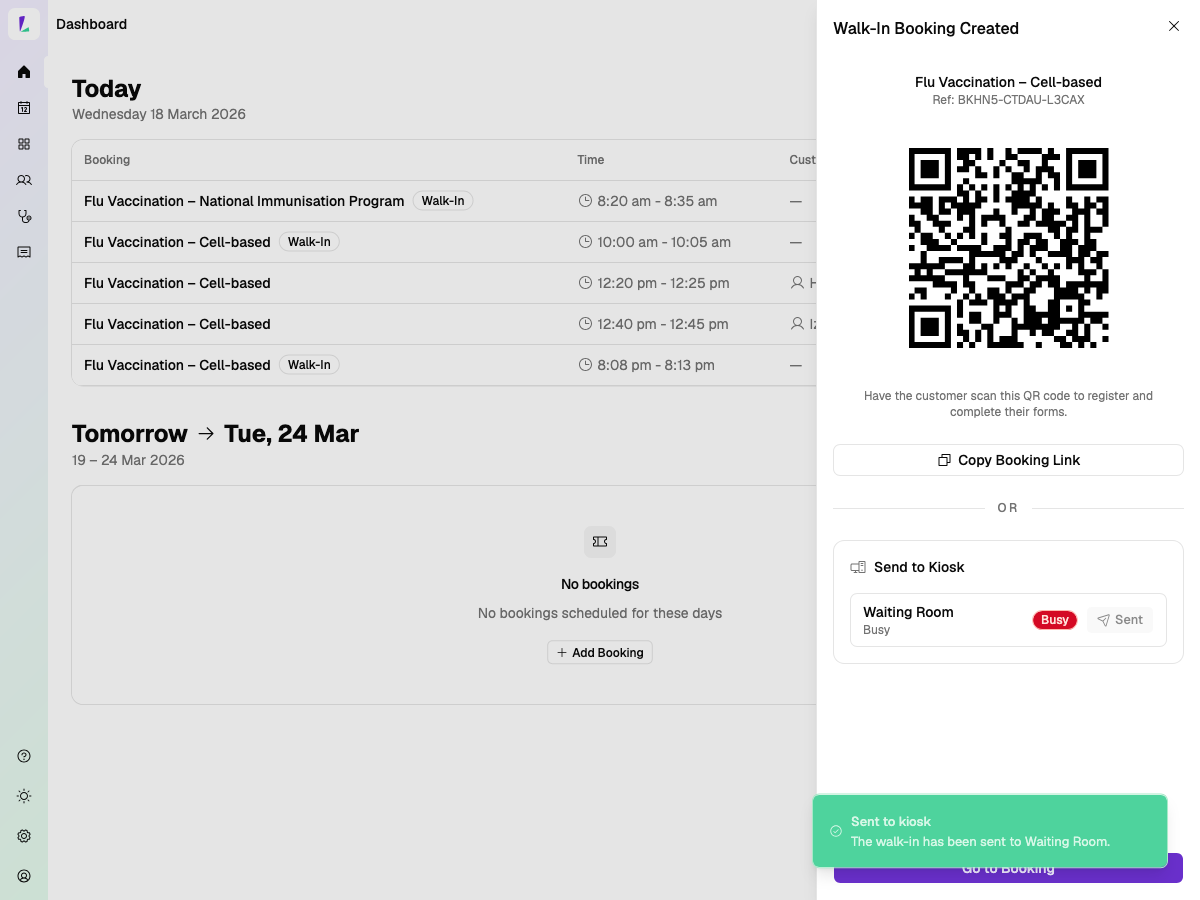
Set up a walk-in booking in Light and send it to the kiosk to see it appear.

This confirms the pairing is working, the kiosk actions are configured correctly, and your team knows what the patient will see on the tablet.
Screenshot
Walk-in booking created — QR code and Send to Kiosk
Tips

If the kiosk isn't working

Check 01
Check the internet connection. Open any website in the browser on the tablet. If it doesn't load, the issue is the network — not Light. Restart the router or switch to mobile data.
Check 02
Check the kiosk is paired. Head to Settings → Kiosks and look at the Pairing column. If it shows Not Paired, re-pair it.
Tip
Charge your tablet every day. When the kiosk isn't in use, put it on charge. A flat battery is the most avoidable reason a kiosk goes offline during a busy clinic.

What you've covered

Pair it once. After that, any device with a browser can run the kiosk — no installs, no updates needed.

Screens & recordingsContent reflects Light at the time of publishing. The platform updates regularly — we do our best to keep training materials current.
Pharmacy Groups & EnterpriseIf your pharmacy is part of a group or enterprise account, your implementation may differ from what's shown here. Follow your group's guidelines or speak to your Oexa contact.
Professional obligationsAs a registered health professional, you remain responsible for complying with all applicable legislation, state-based guidelines, and mandatory requirements relevant to your scope of practice. This guide does not override those obligations.
For pharmacy staff onlyScreenshots and recordings are intended to help pharmacy staff learn to use Light. They are not promotional material and should not be shared with health consumers.
© Oexa Pty Ltd