Step by step
What you're doing in the recording — and why each step matters.
Open the Kiosks page
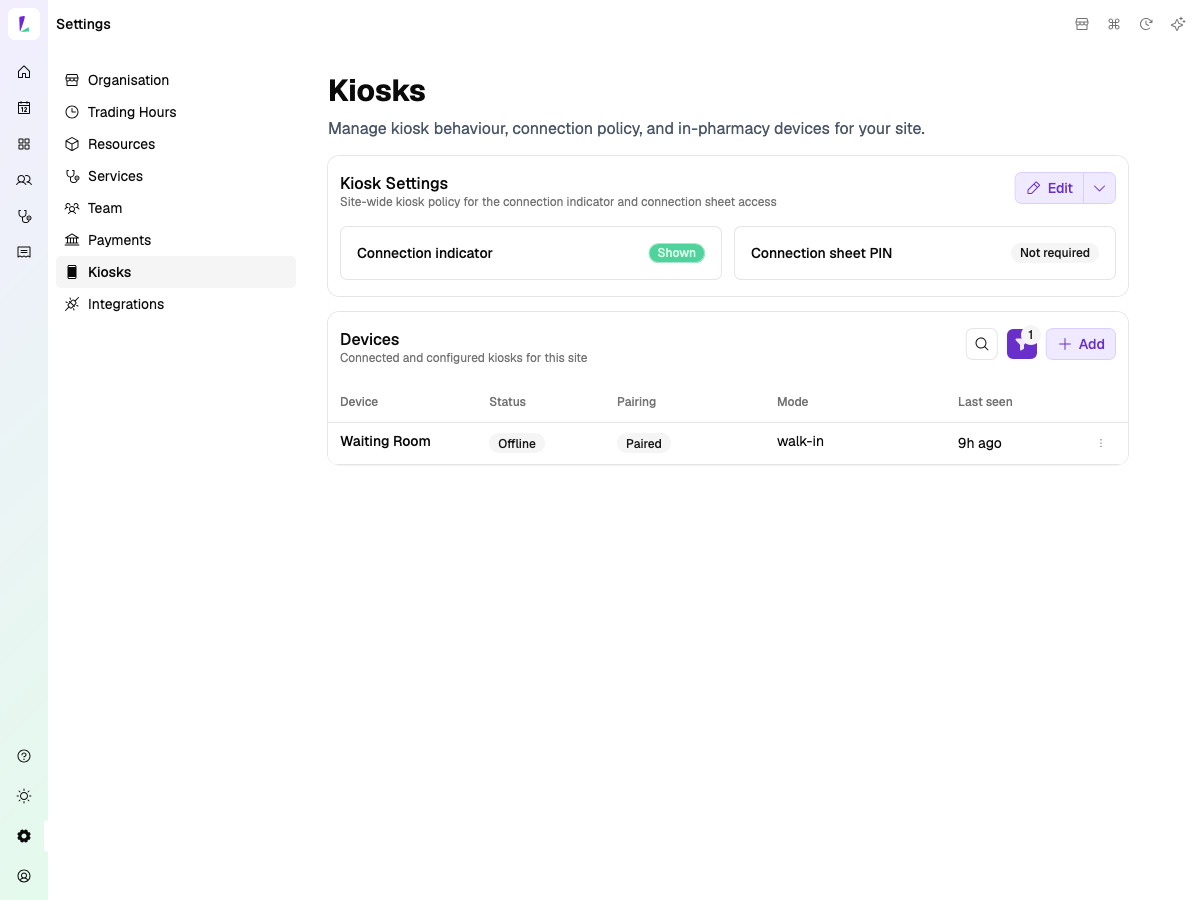
Head to Settings, then select Kiosks from the left menu. This is where you'll manage all your paired devices.
Click Add Device to get started.
Pair the device
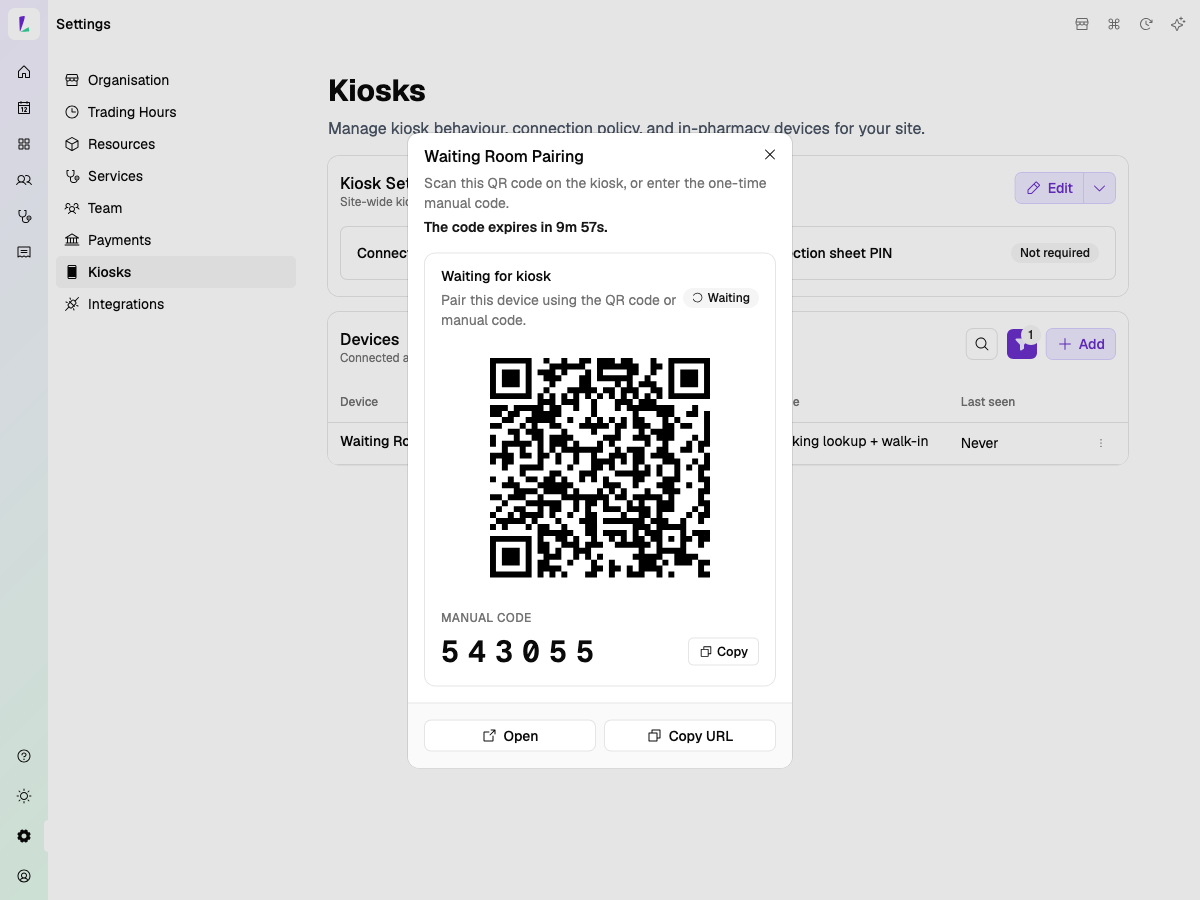
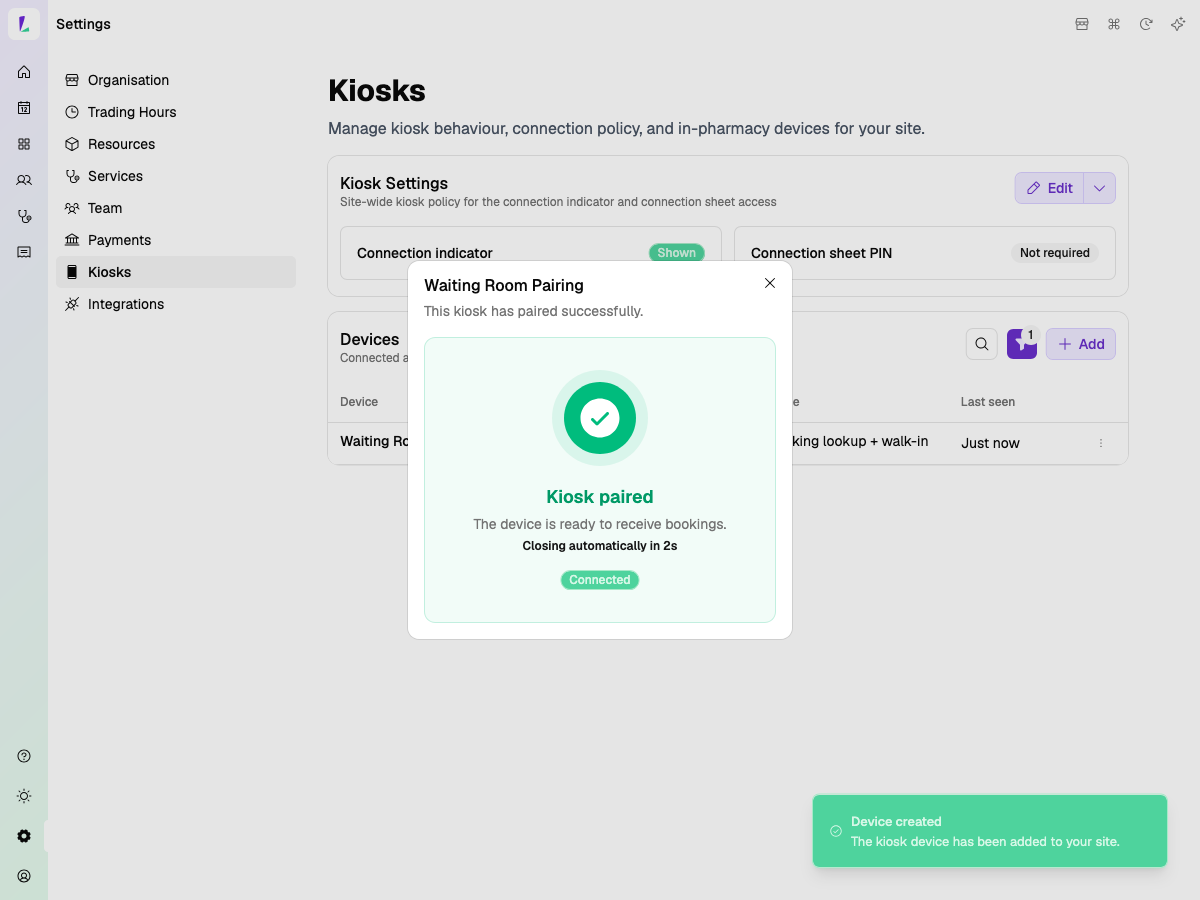
Name your device and hit Add and pair now. Light generates a QR code — open the device's camera and scan it to pair instantly.
Alternatively, you can use the URL and code shown on screen — type the URL into any browser on the tablet and enter the pairing code.
Configure what patients see
Once paired, configure your Kiosk Actions — these are the options patients see on the tablet screen.
Choose from Check in for a booking, Start a walk-in, or Look up a booking. Toggle each one on or off depending on how your pharmacy runs.
Test it!
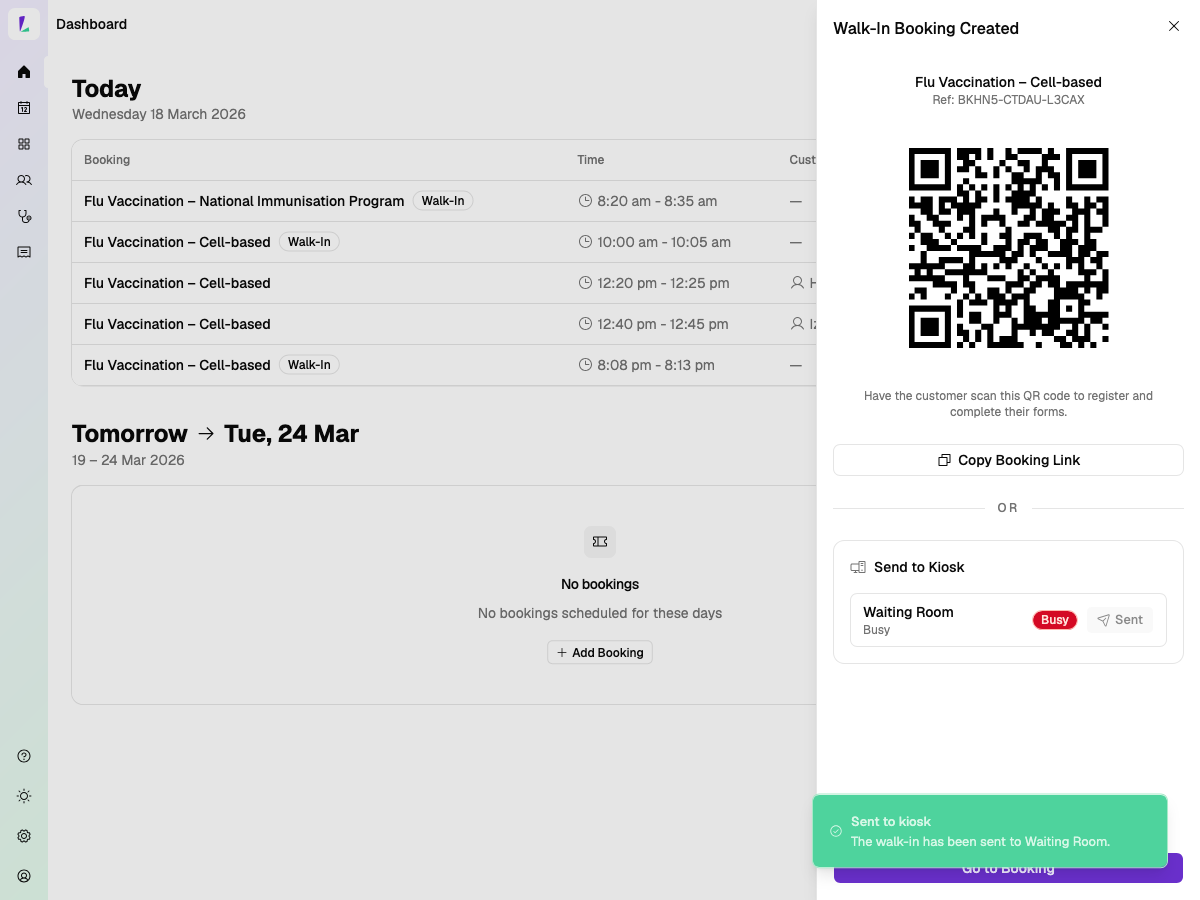
Set up a walk-in booking in Light and send it to the kiosk to see it appear.
This confirms the pairing is working, the kiosk actions are configured correctly, and your team knows what the patient will see on the tablet.