Connect to PPA.

Connect Light to the Pharmacy Programs Administrator and be ready for submitting claims for eligible encounters.

~3 minutes
Pharmacy Owner / Manager
What you'll need from the PPA Portal
PPA User ID
PPA API Key
Settings · Integrations · Claims
The setup

Step by step

Connect your PPA account so Light can submit claims on your behalf.

Step 01

Get your PPA credentials

Before you start, you'll need access to the PPA Portal — you'll be grabbing a couple of details from there. Log in and grab your User ID and generate an API Key.

If you're not sure how to generate your API Key, PPA have a user guide for that — contact them directly or refer to the PPA Portal User Guide for Integration and API User Keys.
Screenshot
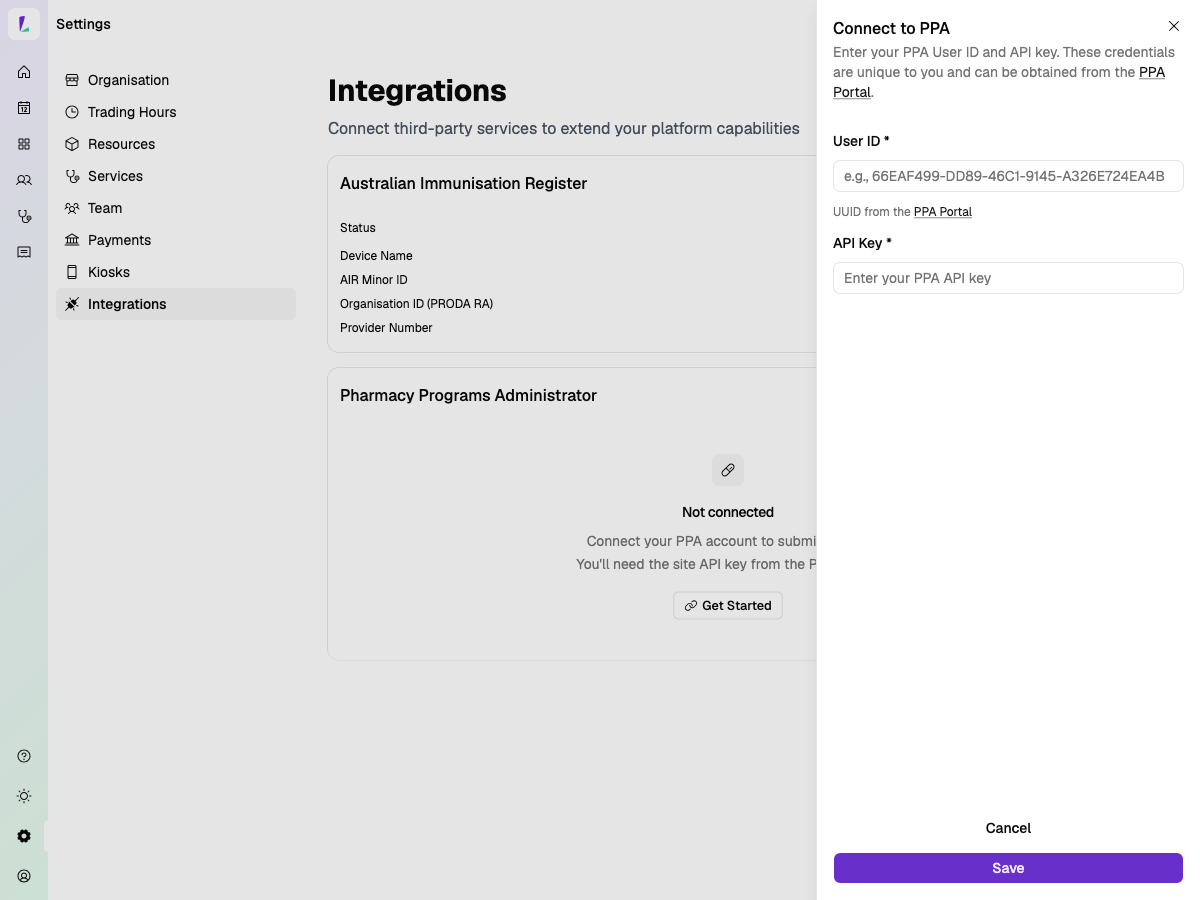
Connect to PPA — enter User ID and API Key
Step 02

Enter your credentials in Light

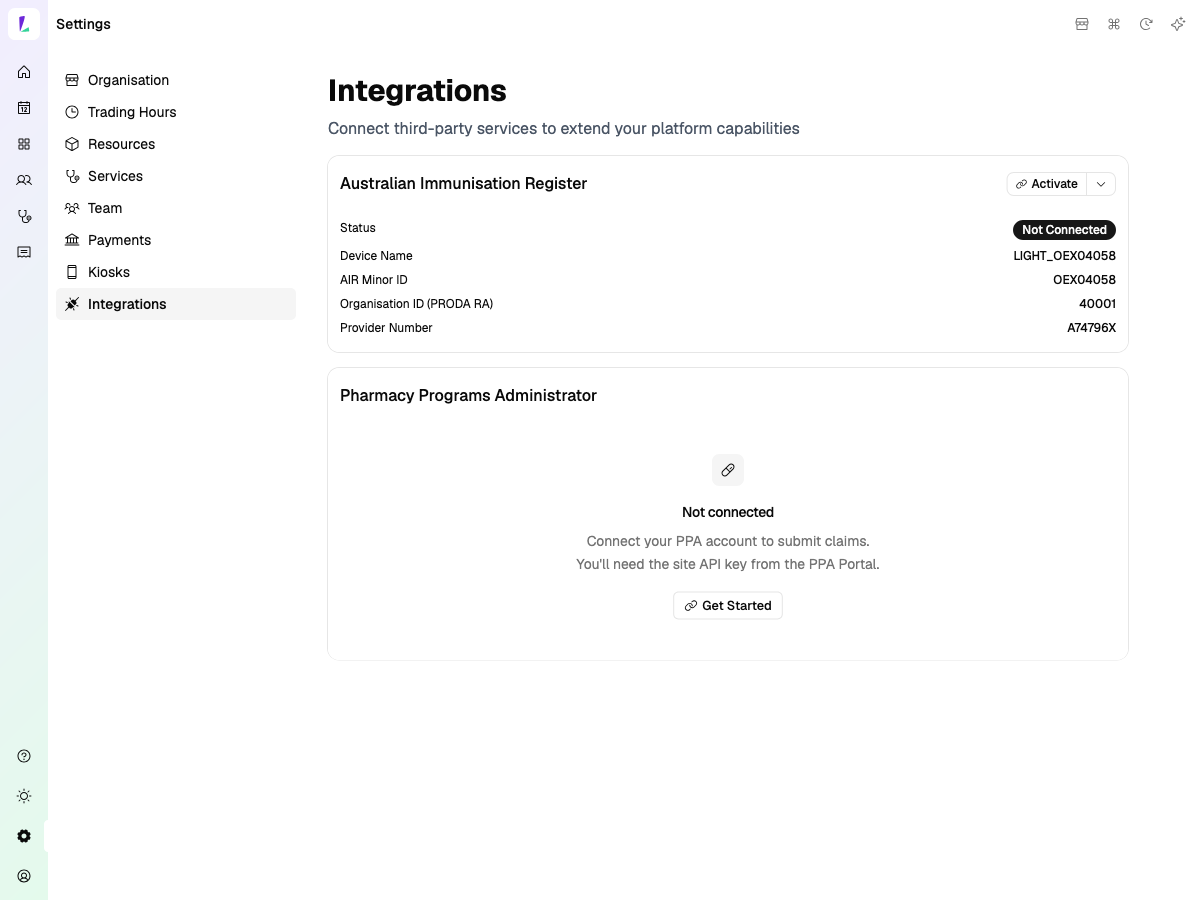
Head to Settings → Integrations in Light. Find the Pharmacy Programs Administrator section and click Get Started.

Enter your PPA User ID and PPA API Key, then hit Save, and click Proceed.

Once saved, the API Key will be hidden — as requested by PPA.
Important: If you generate a new API Key in the PPA Portal, that key needs to be updated everywhere it's used across your pharmacy software. If you only update it in Light, PPA claiming may stop working in your other systems. Make sure all platforms are updated at the same time.
Screenshot
Connect to PPA drawer — User ID and API Key fields
Step 03

Select your service provider

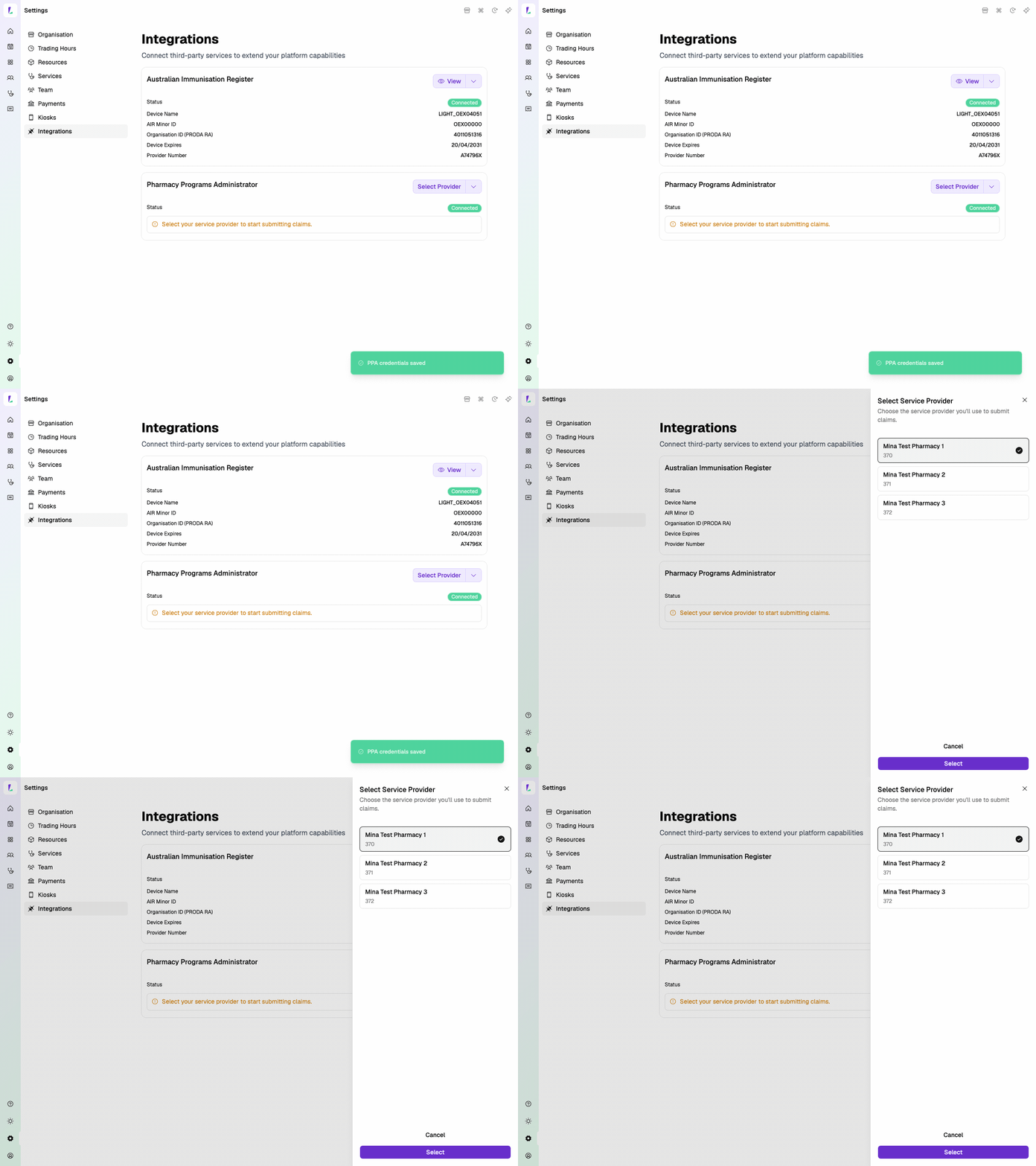
Choose the service provider you'll use to submit claims. If your account is linked to multiple providers, select the one that matches this site.
Screenshot
Select service provider and connected confirmation
Step 04

Connected

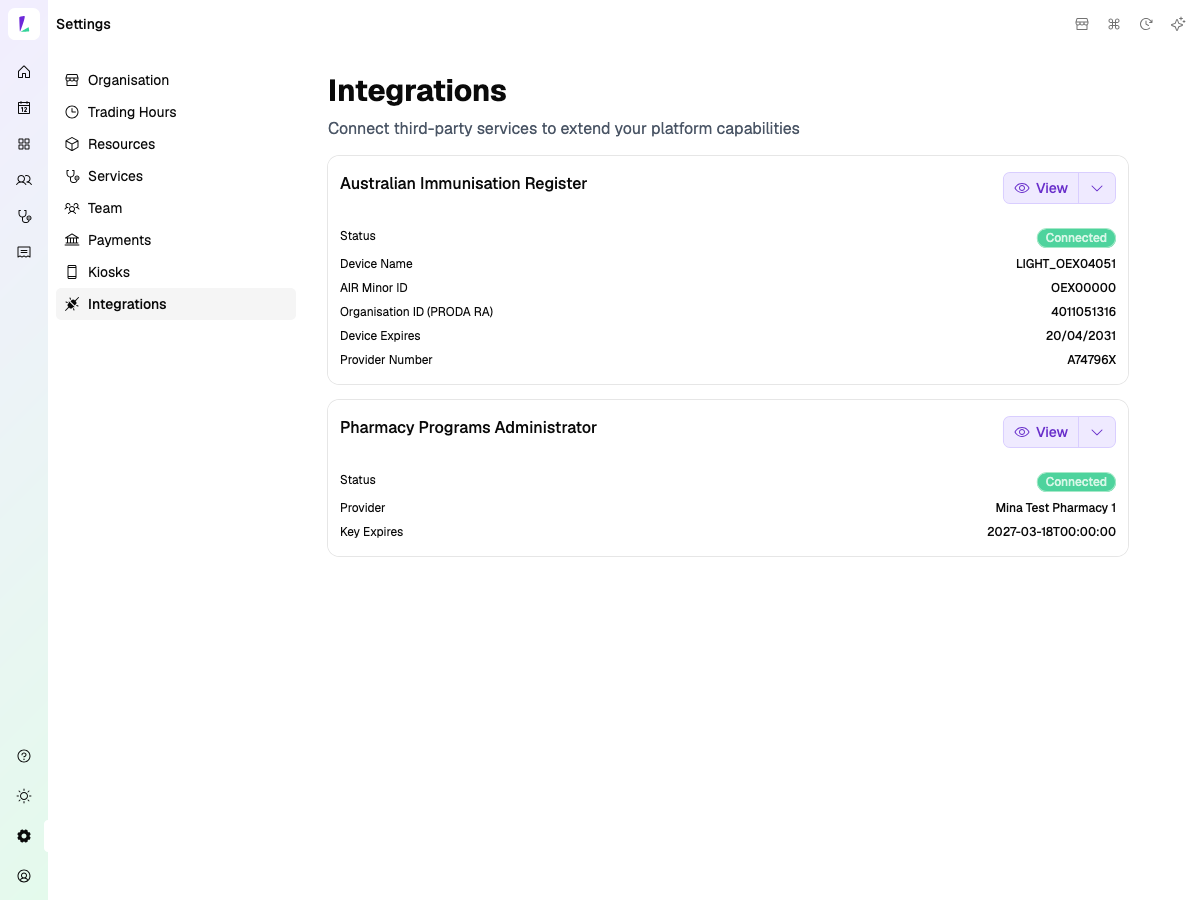
You'll see a success confirmation when it's connected. From this point, Light will use PPA claiming for eligible encounters.

Your connection details — provider name and key expiry — are visible right here in Integrations.
Screenshot
Integrations page — PPA Connected
How it works

How claiming works

Once connected, PPA claiming flows naturally from your encounters.

Step 05

Claim ready after encounter

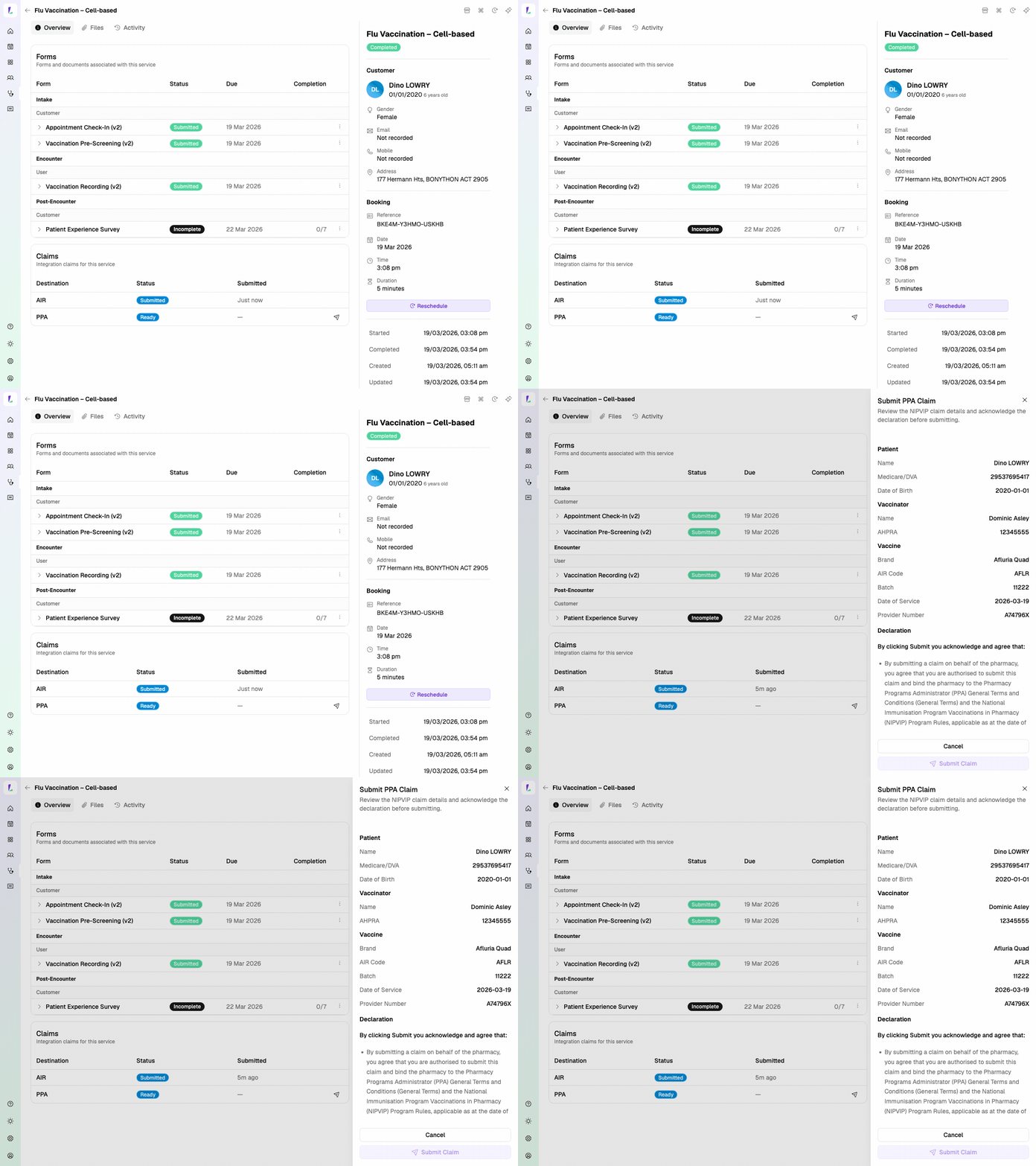
After you record an encounter, you'll see the PPA claim is Ready to submit. You will need to declare to submit — click the send icon to lodge the claim.

Screenshot
Encounter overview — PPA claim Ready to submit
Step 06

Claims dashboard

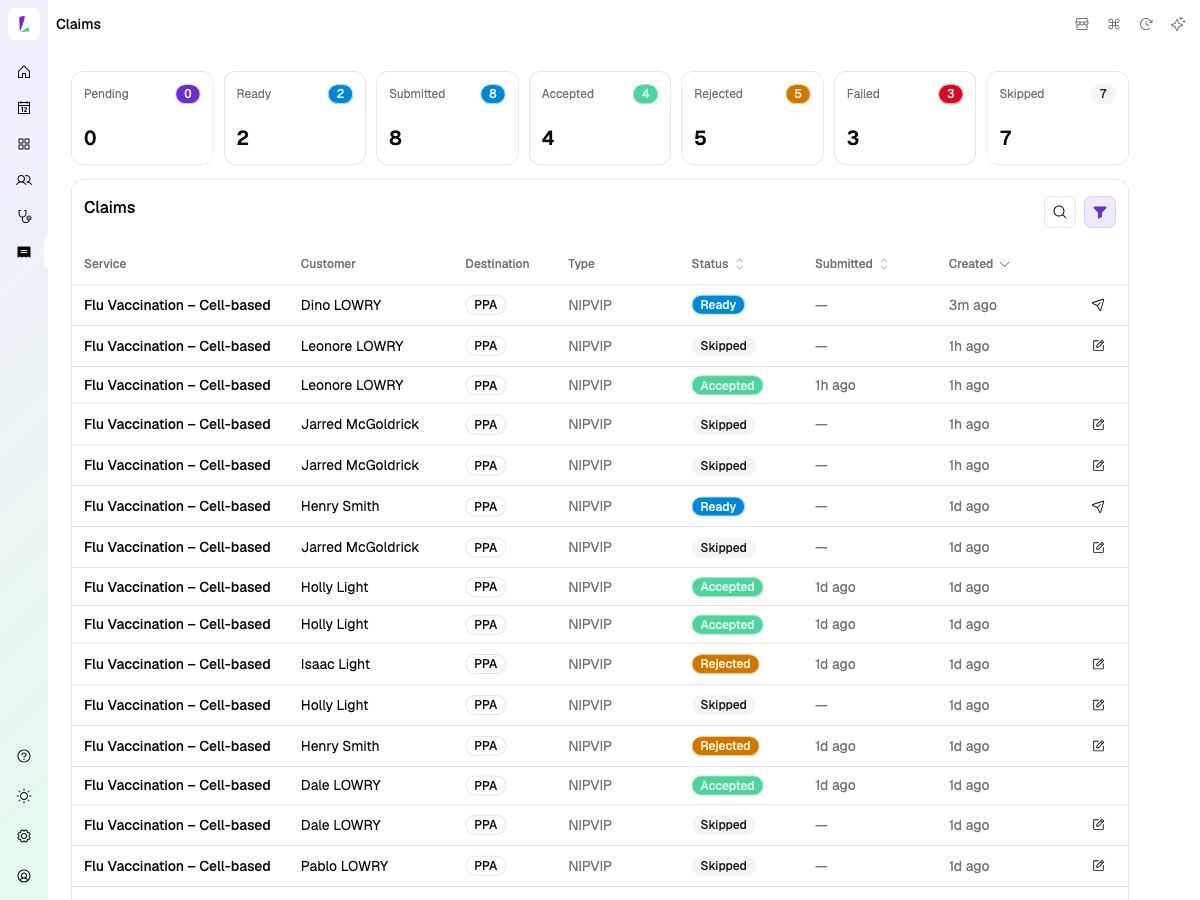
You can also go directly to Claims to see your PPA claiming status and submit from there.

The dashboard shows all claims across statuses — Pending, Ready, Submitted, Accepted, Rejected, Failed, and Skipped.

Hover over any Rejected status and it'll show you the reason — no need to log into the PPA Portal to find out what went wrong.
You may also see a Skipped status. Hover over that and it means Light didn't attempt to send it to PPA claiming — it'll tell you why.
Screenshot
Claims dashboard with status filters

What you've covered

Once connected, PPA claiming is part of your workflow. Record the encounter, submit the claim — done.

Screens & recordingsContent reflects Light at the time of publishing. The platform updates regularly — we do our best to keep training materials current.
Pharmacy Groups & EnterpriseIf your pharmacy is part of a group or enterprise account, your implementation may differ from what's shown here. Follow your group's guidelines or speak to your Oexa contact.
Professional obligationsAs a registered health professional, you remain responsible for complying with all applicable legislation, state-based guidelines, and mandatory requirements relevant to your scope of practice. This guide does not override those obligations.
For pharmacy staff onlyScreenshots and recordings are intended to help pharmacy staff learn to use Light. They are not promotional material and should not be shared with health consumers.
© Oexa Pty Ltd